Want to learn more about surgical guide planning?
Discover how digital workflows can improve your implant success rates.
Table of Contents
- What Is DICOM and Why It Matters
- What Makes a Good DICOM for Guide Design
- The Conversion Pipeline
- Stage 1: DICOM Import and 3D Reconstruction
- Stage 2: Segmentation
- Stage 3: STL Registration (Merge)
- Stage 4: Implant Planning
- Stage 5: Guide Design
- Stage 6: STL Export and Quality Control
- From STL to Surgical Guide: The Final Steps
- What You Need to Get Started
Every surgical guide begins as a DICOM file. This is the universal medical imaging format produced by your CBCT scanner — a series of hundreds of cross-sectional images that, when reconstructed, reveal the complete 3D anatomy of the jaw.
A 3D-printed template that fits over the patient's teeth or tissue and directs drill placement during implant surgery. It transfers the digital treatment plan into precise physical drill positions.
Digital Imaging and Communications in Medicine — the universal file format for medical imaging. CBCT scanners produce DICOM files that are imported into planning software for 3D reconstruction.
A 3D imaging technique that captures the jaw, teeth, and bone structure in a single rotational scan. It produces DICOM files used for implant planning, nerve mapping, and surgical guide design.
Transforming these raw DICOM images into a precision surgical guide is a multi-step digital process. This article explains each step so you understand exactly what happens between the moment you export a scan and the moment you receive a print-ready guide file.
What Is DICOM and Why It Matters
DICOM (Digital Imaging and Communications in Medicine) is the standard file format for all medical imaging — CT, MRI, and CBCT scanners all produce DICOM files. A single CBCT scan typically generates 200-600 individual DICOM images (slices), each representing a thin cross-section of the anatomy.
Key properties of DICOM files for implant planning:
- Voxel size — the smallest unit of 3D resolution (0.125-0.4mm for most dental CBCT)
- Field of view — how much anatomy is captured (single jaw vs. full skull)
- Gray values — density information that differentiates bone from soft tissue
- Metadata — scanner settings, patient orientation, slice spacing
What Makes a Good DICOM for Guide Design
| Parameter | Minimum | Recommended |
|---|---|---|
| Voxel size | 0.3mm | 0.2mm or smaller |
| Field of view | Region of interest + 2cm margin | Full jaw |
| Motion artifacts | None in implant region | Clean entire scan |
| Metal artifacts | Minimal | Artifact reduction applied |
The Conversion Pipeline
Stage 1: DICOM Import and 3D Reconstruction
The raw DICOM slices are imported into planning software and automatically reconstructed into a 3D volume. This reconstruction creates three standard views:
- Axial — top-down view of the jaw
- Coronal — front-back view through the jaw
- Sagittal — side view through the jaw
- 3D rendering — interactive 3D model of the bone surfaces
At this stage, the designer can rotate, slice, and measure the anatomy in any plane.
Stage 2: Segmentation
Segmentation separates the bone from soft tissue and other structures. This produces clean 3D surfaces of:
- Mandible and maxilla — the jawbone that will receive implants
- Teeth — crown and root anatomy for guide seating reference
- Nerve canals — the inferior alveolar nerve path for safety margins
- Sinuses — maxillary sinus boundaries for upper jaw cases
Segmentation quality directly affects planning accuracy. If bone boundaries are poorly defined, implant positioning becomes unreliable.
Stage 3: STL Registration (Merge)
The CBCT data (bone + roots) is merged with an intraoral scan (STL file showing tooth surfaces). This registration is critical because:
A 3D surface mesh file format used in dental CAD/CAM. Intraoral scanners produce STL files that capture tooth and gingival surfaces for surgical guide fitting.
- CBCT shows what is inside (bone, nerves, roots)
- STL shows what is outside (tooth crowns, gingiva)
- The guide must seat on visible surfaces while directing drills toward internal targets
Registration aligns both datasets in the same 3D coordinate system, typically by matching tooth crowns visible in both the CBCT and the STL.
Stage 4: Implant Planning
With complete anatomy available, virtual implants are positioned:
- Prosthetic-driven placement — start from the ideal crown position and work backward to the bone
- Bone volume verification — confirm adequate height, width, and density
- Safety margin check — minimum 2mm from nerve canals, 1.5mm from adjacent roots
- Insertion axis optimization — minimize bone interference while maintaining prosthetic access
Each implant specification is set:
- Brand and model (Straumann, Nobel, Osstem, etc.)
- Diameter (3.3-5.5mm typical)
- Length (6-16mm typical)
- Platform type (regular, narrow, wide)
Stage 5: Guide Design
The surgical guide is a 3D shell modeled to:
- Seat precisely on the patient's teeth or tissue
- Contain sleeves positioned at each implant site
- Direct drills along the planned implant axes
- Stop at depth using the implant system's guided surgery protocol
Guide design parameters include:
- Wall thickness (2-3mm for structural integrity)
- Sleeve type (open or closed, compatible with specific implant systems)
- Retention features (clasps, undercuts for guide stability)
- Inspection windows (openings to verify guide seating visually)
Stage 6: STL Export and Quality Control
The final guide design is exported as an STL file — the universal format for 3D printing. Before delivery:
- Mesh integrity is verified (no holes, inverted normals, or self-intersections)
- Wall thickness is checked against printing requirements
- Sleeve dimensions are validated against implant system specifications
- The file is oriented for optimal printing (minimizing support structures)
From STL to Surgical Guide: The Final Steps
After receiving the STL file, the guide is manufactured:
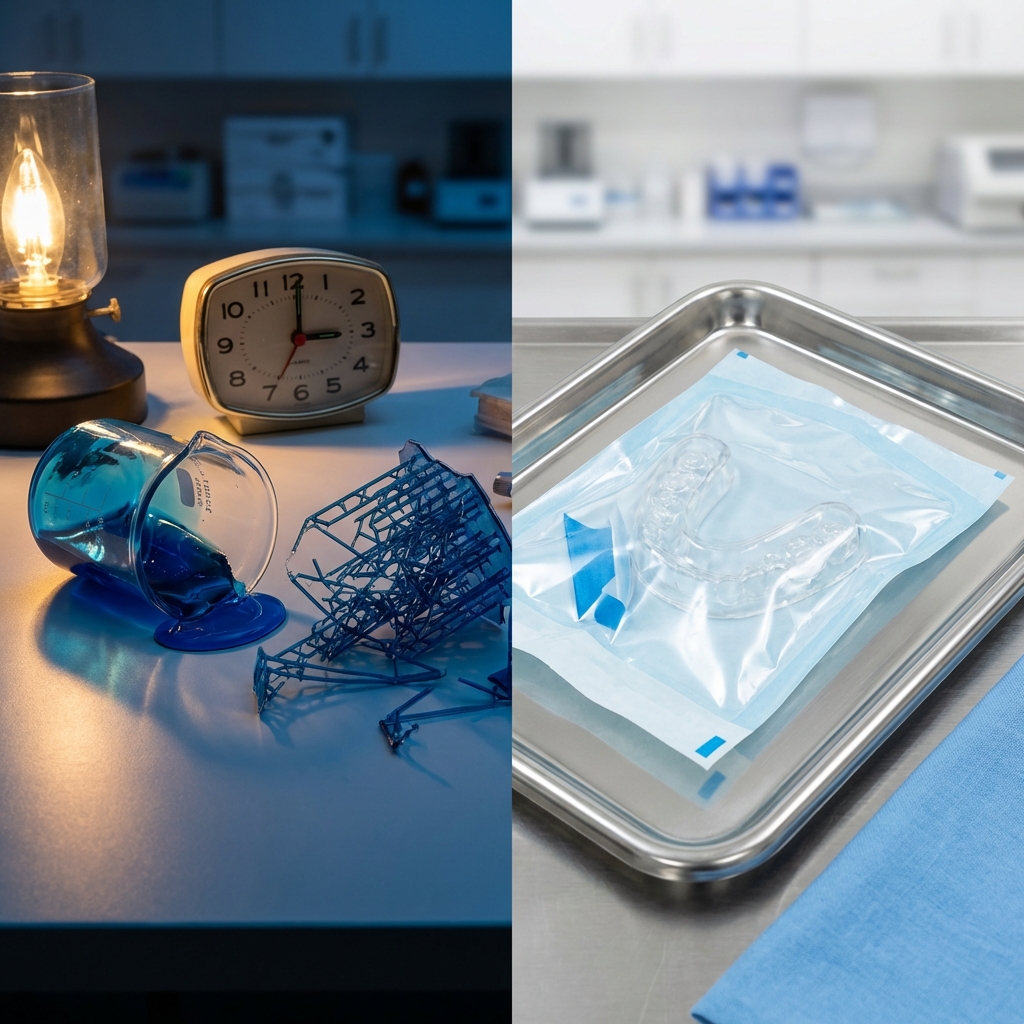
- 3D printing — SLA or DLP printing in biocompatible surgical resin (Class IIa medical device material)
- Post-processing — UV curing, support removal, surface finishing
- Sterilization — autoclave or chemical sterilization per manufacturer instructions
- Sleeve insertion — metal guide sleeves are pressed into the designated positions
What You Need to Get Started
To convert your DICOM into a surgical guide, we need:
- CBCT DICOM files — export from your scanner (USB, cloud, or PACS)
- Intraoral STL scan — from any scanner brand
- Implant system preference — which brand and model you plan to place
- Clinical notes — any specific requirements (emergence angle, prosthetic plan)
Upload both files through the platform, and your custom guide design will be ready in 2-3 business days.
Ready to streamline your surgical guide workflow?
Join 200+ dental professionals who trust SurgicalGuide.Pro for precision planning.